Assignments > Instagram Wireframes in Figma
Assignments > Tutorial 4a: Instagram Wireframes in Figma
Due Wed, 02/18 at 11:59pm
Assigned Readings & Videos
Before completing this tutorial, please watch the tutorial Figma video, and complete the low-fidelity prototype reading:
- Figma Wireframe Tutorial for Beginners. Aliena Cai
- Low-Fidelity Prototypes. Interaction Design Foundation
In this activity, you will create a low-fidelity wireframe of the Instagram feed screen to practice layout, hierarchy, and information architecture.
1. Why Wireframes?
Wireframes are the blueprint of your design. They help you:
- Focus on layout and structure without getting distracted by colors and styling
- Plan information hierarchy (what users see first, second, third)
- Identify user flows and interactions
- Get feedback on functionality before investing time in visual design
Wireframing Rules:
| ✅ DO | ❌ DON'T |
|---|---|
|
|
2. Setup: Getting Started with Figma
- Go to figma.com and sign in (or create a free account)
- Open the Tutorial 4 starter file: Instagram Wireframes Starter
- Click the ”…” menu in the top right corner
- Select “Duplicate” to create your own copy
- Rename your file:
Instagram Wireframes - [Your Name]
The starter file already has:
- A mobile frame (375px width) set up for you
- A desktop frame (1200px width) set up for you
- Both frames are ready for you to add your wireframe elements
2.1. Figma Basics (Quick Reference)
| Shortcut | Action |
|---|---|
| R | Rectangle tool - Draw boxes for content areas |
| T | Text tool - Add labels and placeholder text |
| F | Frame tool - Create frames for different screens (like artboards) |
| Cmd/Ctrl + | Zoom in |
| Cmd/Ctrl - | Zoom out |
| Shift + 1 | Zoom to fit (re-center canvas) |
| Spacebar + Drag | Pan (move around the canvas) |
3. Wireframe the Feed Screen
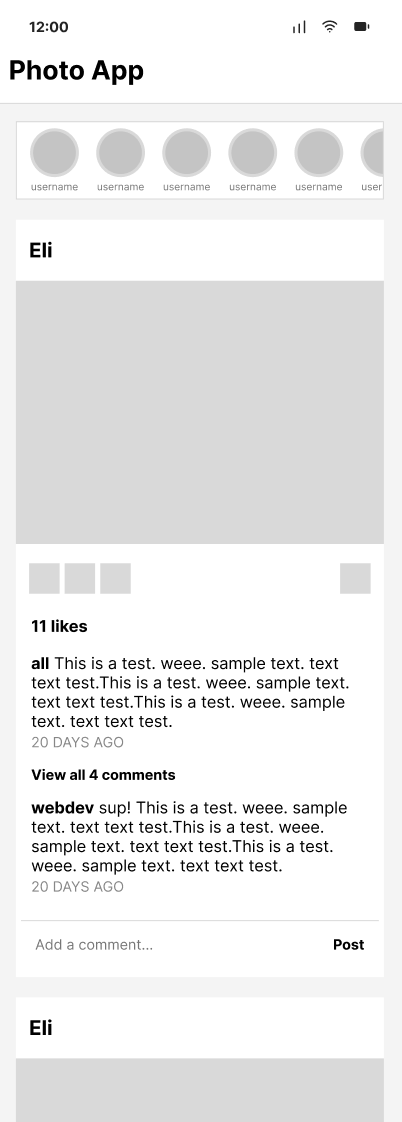
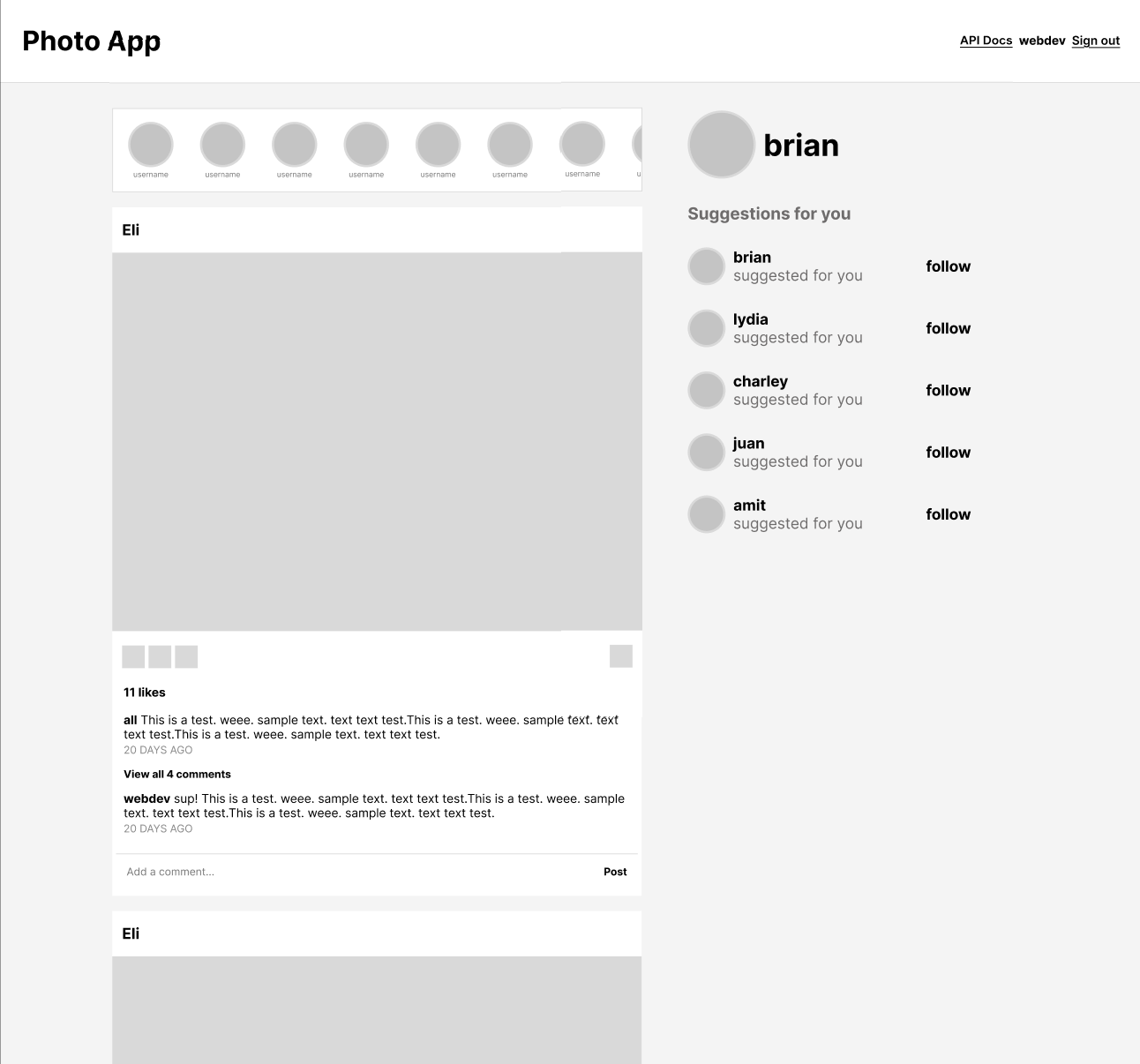
Recreate the Instagram feed screen wireframes shown in the starter file for both mobile and desktop versions.
Wireframe Ground Rules
- No colors (but you can use grayscale)
- No images
- Use only one font – but you can use variants (bold, italics, size, uppercase, etc.)
3.1. Mobile Version
-
Find the mobile frame:
- Click on the mobile frame in the left sidebar to select it
- You’ll see a reference image showing what the mobile feed should look like
-
Recreate the wireframe:
- Using rectangles, circles, and text labels, recreate the layout shown in the reference image
- Focus on matching the structure, spacing, and hierarchy
- Use placeholders for text (e.g., “Username”, “Caption text…“)
3.2. Desktop Version
-
Find the desktop frame:
- Click on the desktop frame in the left sidebar to select it
- You’ll see a reference image showing what the desktop feed should look like
-
Recreate the wireframe:
- Using rectangles, circles, and text labels, recreate the layout shown in the reference image
- Pay attention to the two-column layout (main content on left, sidebar on right)
- Use placeholders for text (e.g., “Username”, “Caption text…“)
4. Checklist
The wireframe is grayscale with no pictures: just rectangles, circles, and text.
The wireframe represents all of the elements pictured in the screenshot
You have completed both the mobile wireframe and the desktop wireframe.
Next Steps
When you’re done with your low-fidelity mockup, move on to Tutorial 04b (high-fidelity mockup).