Exams > Practice Exam 1: HTML + CSS
Introduction
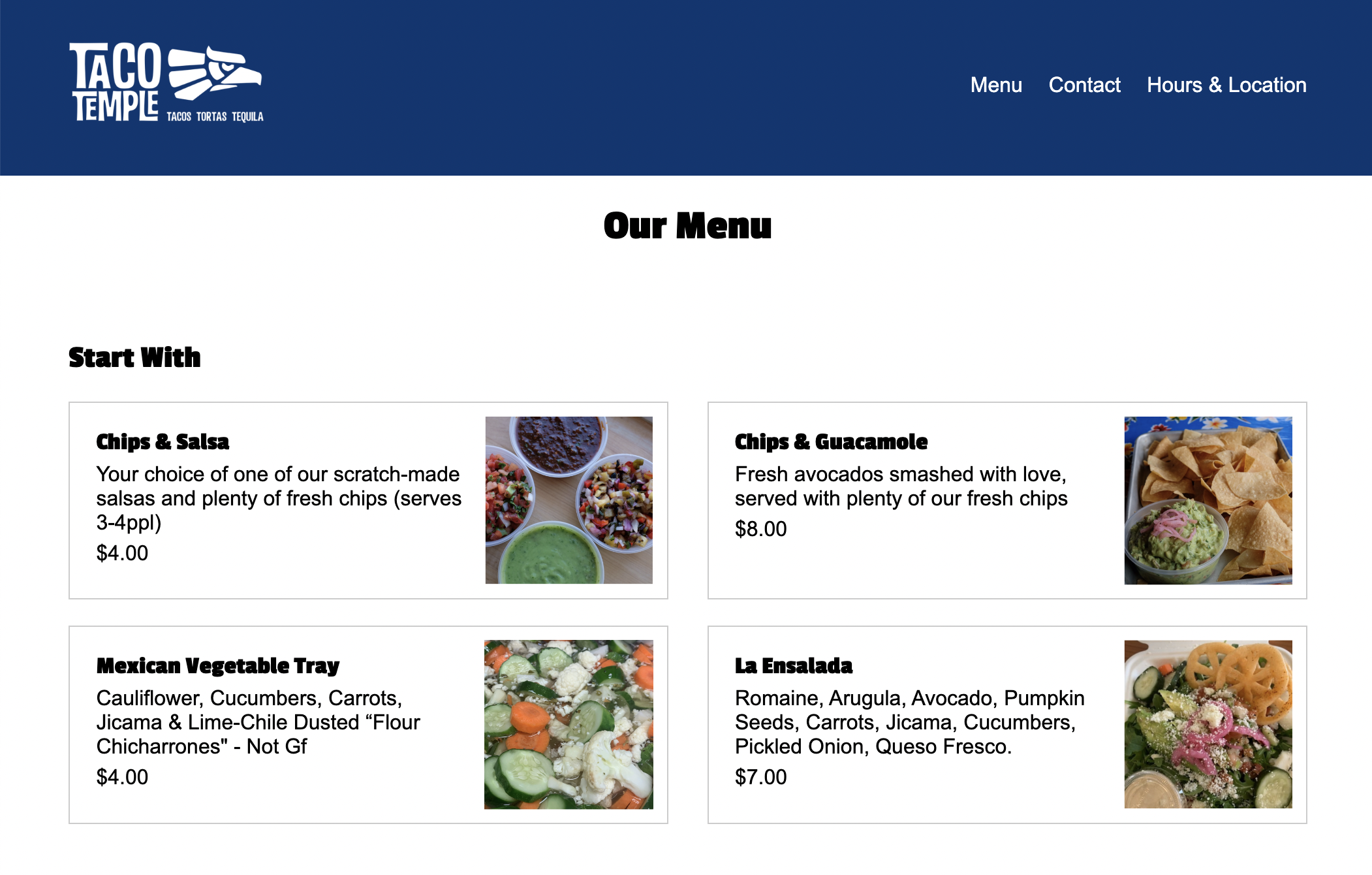
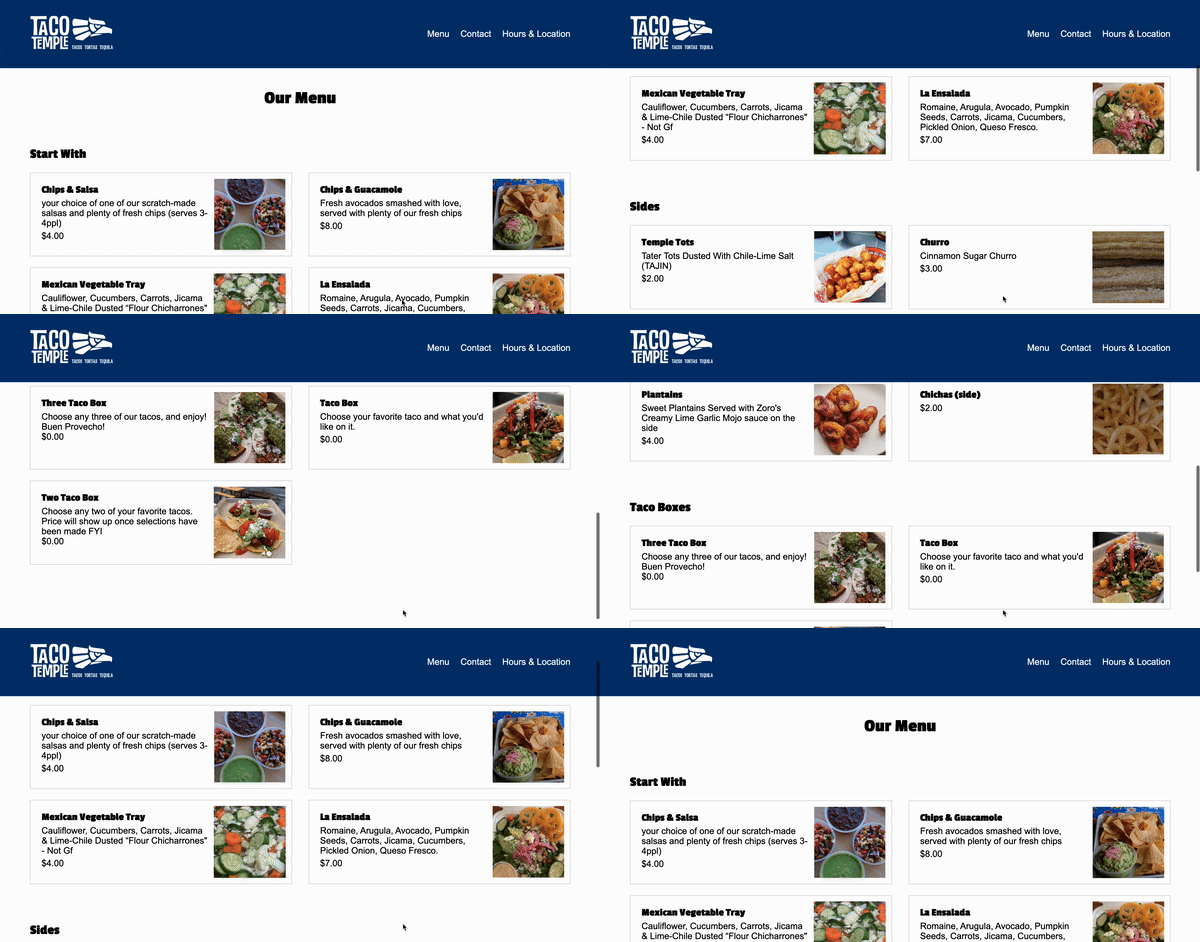
For the coding portion of this exam, you will be replicating part of the Taco Temple interface as pictured below:
Guidelines
- Read the instructions that are outlined under each section very carefully.
- Complete as many tasks as you can by the end of the exam.
- Make your page look as close to the screenshots / demos as possible.
- You may use your notes, any sample code, any prior work you’ve completed, and the Internet
- You may not move the images into a different folder to make the image linking task easier.
- You may not communicate with anyone during the exam or use ChatGPT
- Partial credit given. Just do your best!
Set-Up
- Download the starter files and unzip them. They should be unzipped in a folder called
exam01-practice. - Create an
examsfolder inside of yourcsci344folder. Move yourexam01-practicefolder into yourcsci344/examsfolder. - Open your entire
csci344folder in VS Code.
Your directory structure should look something like this (it’s OK if your file structure looks different, so long as the exams folder looks like the one below):
csci344
├── homework
├── lectures
├── exams
│   └── exam01-practice
├── tutorials
...
When you’re done with that, complete the Parts 1-7 as described below:
- (10pts) HTML Linking
- (20pts) Header
- (15pts) Google Fonts
- (25pts) Main
- (10pts) Accessibility
- (15pts) Responsive layout
- (5pts) Link from your homepage
Your Tasks
Part 1. HTML Linking [10pts]
Currently, all of the image links are broken because their source is pointing to a dummy location (src="#"). Please fix the broken image links to the logo image and all of the food images. Take a look at the screenshots to see what the images ought to look like.
Part 2. Header [20pts]
Make the header section look like the picture below, following the guidelines provided:
- [10pts] Use Flex
- [5pts] Links should be white with no underline
- [5pts] Don’t forget the spacing surrounding the image and navigation (i.e., the content shouldn’t be too close to the sides)

Part 3. Google Fonts & H1, H2 Styling [15pts]
- [10pts] Use the “Passion One” Google font to style the
h1,h2, andh3tags. - [2.5pts] Center-align the
h1tag (Our Menu) - [2.5pts] Add some top margin to the
h1andh2tags.
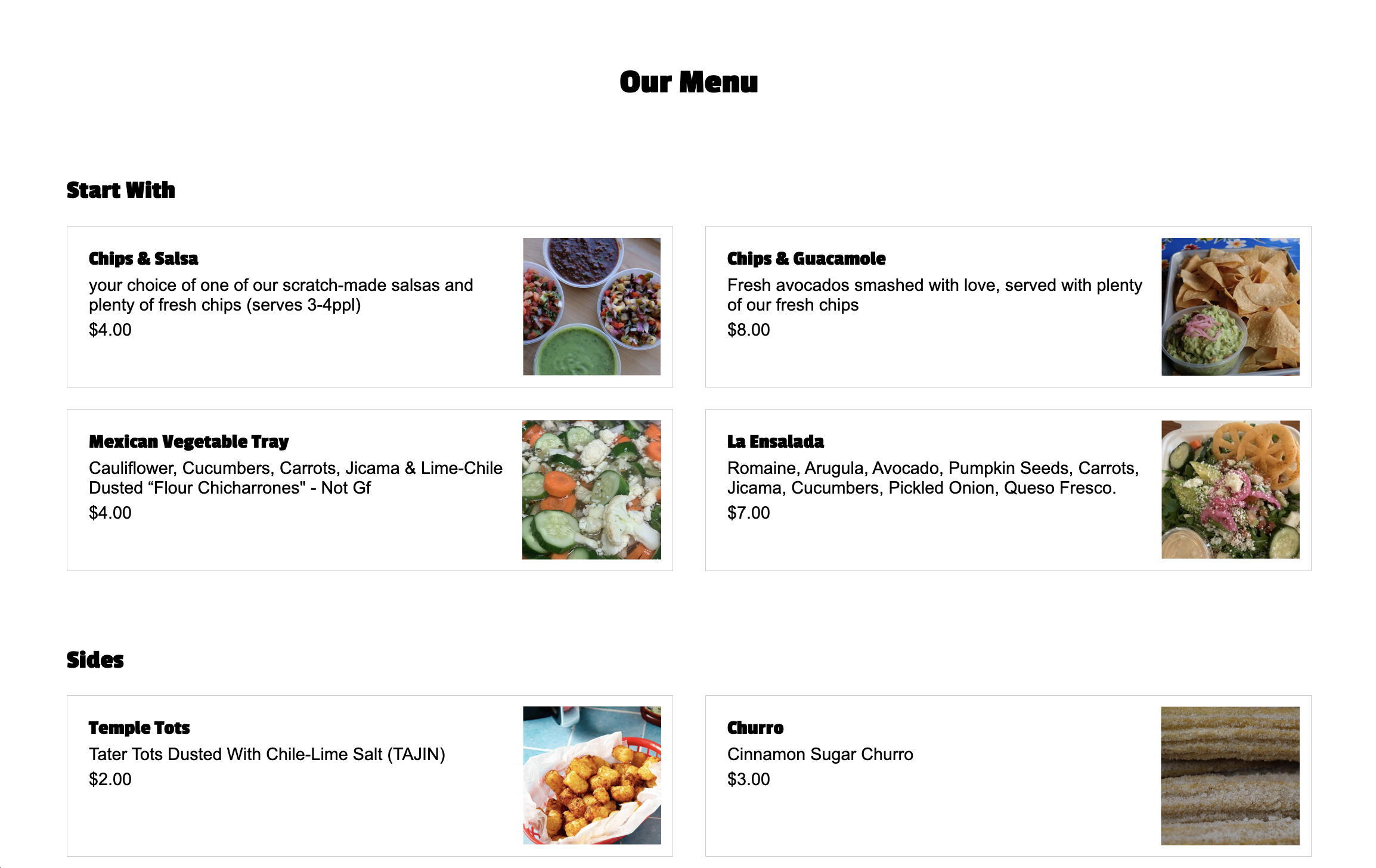
When you’re done, the fonts should look like the ones pictured in Part 4.
Part 4. Main [25pts]
Within the main section of your HTML page, create layout shown below by following the guidelines:
- [12.5pts] The section with the class of “cards” should be a two-column grid (each column should be the same width).
- Hint: you’ll only need to specify the columns, not the rows, as the cards will be positioned into the next available grid cell by default.
- Note the spacing between columns and rows
- [12.5pts] Each section with a class of “card” should also be a two-column grid (the second column should be narrower than the first).
- Make sure you add a border around each card
- Make sure you apply some padding within each card
Part 5. Accessibility [10pts]
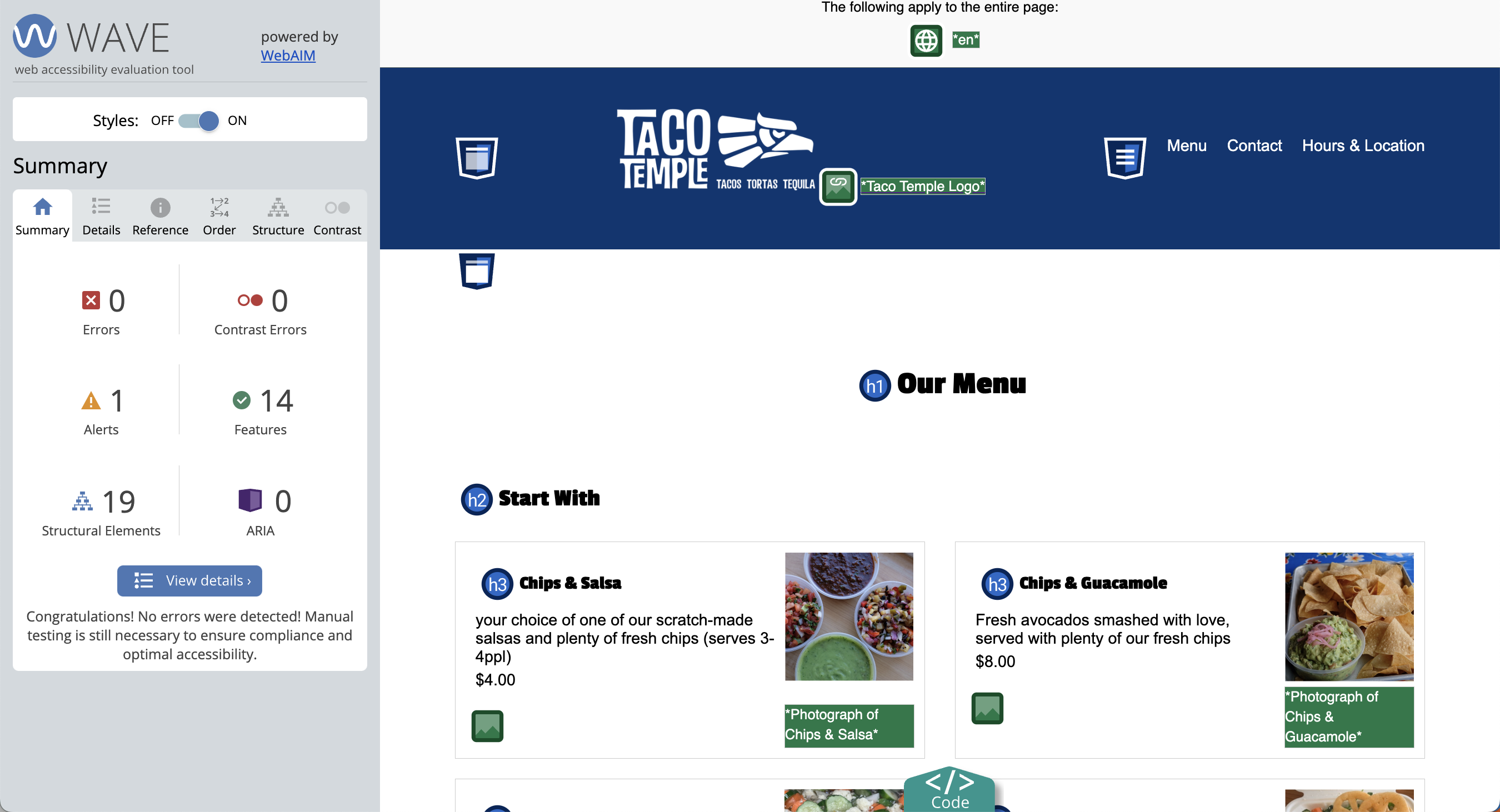
Use the WAVE browser extension to fix any accessibility errors. When you’re done, you should have no accessibility errors.
- You do NOT have to submit a screenshot of your accessibility report.
- You do have to correct all the errors.
Part 6: Responsive Layout [15pts]
Create a media query that activates when the width of the screen is 800px or less. Within the media query, implement the following rules:
- [10pts] Overide the section with the class of “cards” so that it’s a one-column grid.
- [5pts] Target the
navelement and set its display to “none” so that the navigation does not display in the tablet or mobile views.
Part 7: Add a link from your homepage [5pts]
- Update your homepage by adding a link to the
index.htmlfile that you made in this exam (and make sure you are using a relative link).
Verify that You’re Done
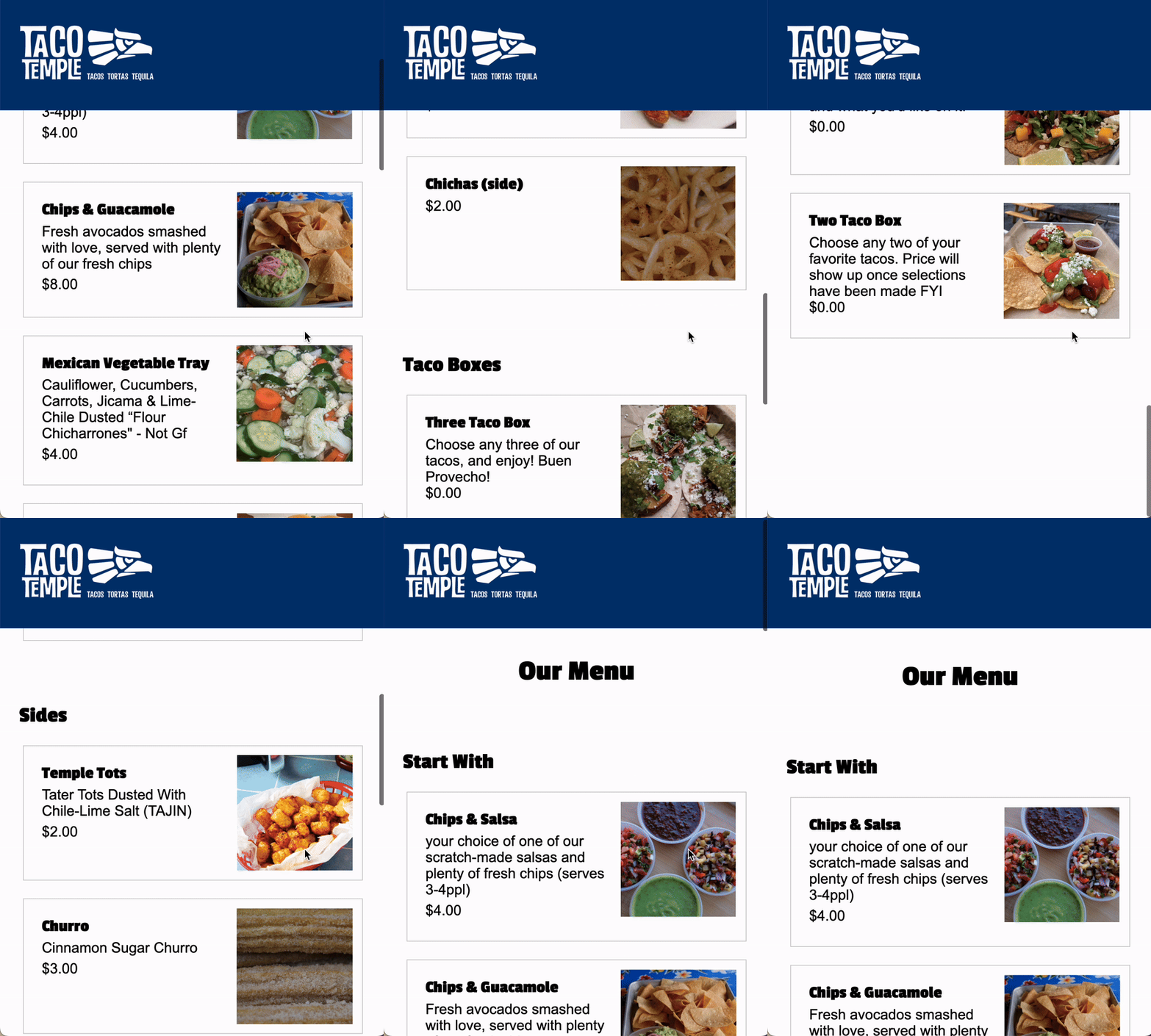
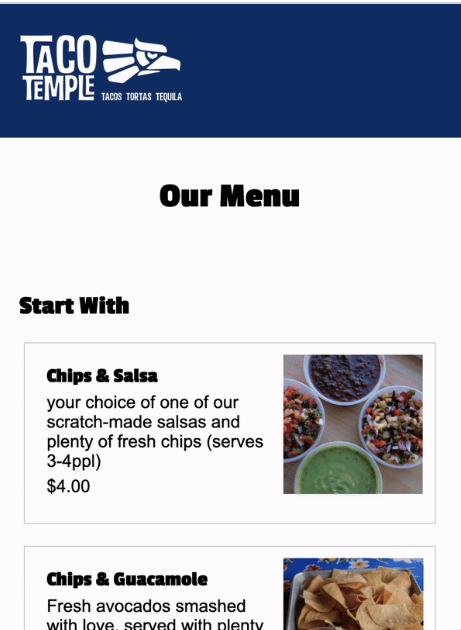
Verify that you’ve completed all 7 tasks and that you’re final Taco Temple menu page (mobile/tablet and desktop) looks as similar as possible to the animations (shown below):
Desktop Layout
Tablet / Mobile