Assignments > Tutorial 6a: Counter Exercise
Due Mon, 03/02 at 11:59pm
1. Setup
- Create a
tutorial06folder (if you haven’t already). - Within
tutorial06, create another folder called01-counterfolder for this exercise - Within
01-counter, create three files:index.htmlstyles.cssscript.js.
Starter HTML Code
Copy the HTML starter code into index.html:
<!DOCTYPE html>
<html lang="en">
<head>
  <meta charset="UTF-8" />
  <meta name="viewport" content="width=device-width, initial-scale=1.0" />
  <title>Counter</title>
  <link rel="stylesheet" href="styles.css" />
  <script src="script.js" defer></script>
</head>
<body>
  <div class="container">
    <h1>Counter</h1>
    <div id="counter">0</div>
    <button id="incrementBtn">+</button>
    <button id="decrementBtn">-</button>
    <button id="resetBtn">Reset</button>
  </div>
</body>
</html>
Starter CSS Code
body {
  font-family: Arial, sans-serif;
  padding: 20px;
  background-color: #f4f4f4;
}

.container {
  max-width: 300px;
  margin: 0 auto;
  background: white;
  padding: 30px;
  border-radius: 8px;
  text-align: center;
}

#counter {
  font-size: 48px;
  font-weight: bold;
  margin: 20px 0;
  color: #4CAF50;
}

button {
  padding: 10px 20px;
  margin: 5px;
  font-size: 16px;
  border: none;
  border-radius: 4px;
  cursor: pointer;
}

#incrementBtn { background-color: #4CAF50; color: white; }
#decrementBtn { background-color: #f44336; color: white; }
#resetBtn { background-color: #2196F3; color: white; }
2. JavaScript Tasks
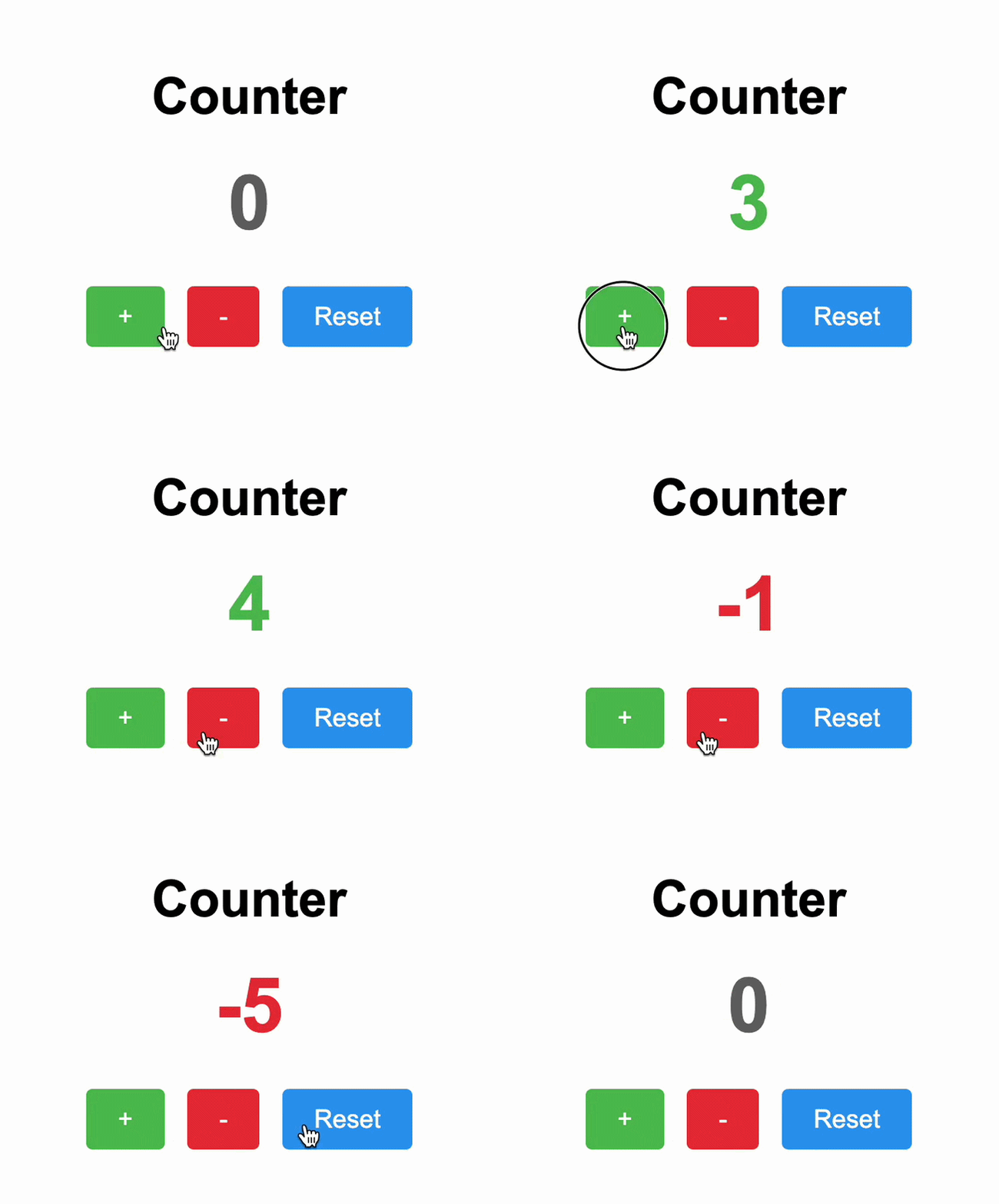
Your job is to write the JavaScript functionality from scratch so that your application behaves as shown below. Please refer to the JavaScript Cheatsheet at the bottom of the page, which lists all of the relevant JavaScript language features that you will need to complete the assignment.
1. Create variables and select elements
At the top of your JavaScript file, create global variables to store:
- The current count (start at
0). - The counter display element (
#counter). - The increment button (
#incrementBtn). - The decrement button (
#decrementBtn). - The reset button (
#resetBtn).
Use document.querySelector() for each element selection.
Tip: You can check if it worked by printing the variable values to the console using
console.log(yourValueHere). View the console in the browser inspector.
2. Create functions
Create four functions:
| Function | Requirements |
|---|---|
increment() |
Increase the count by 1, then call updateDisplay() |
decrement() |
Decrease the count by 1, then call updateDisplay() |
reset() |
Set the count back to 0, then call updateDisplay() |
updateDisplay() |
|
3. Attach functions to buttons
- Add a
'click'event listener to each of the three buttons. You can either do this using the JavaScript method or using the HTML method (see the cheatsheet below)
4. Run updateDisplay() on initialization
Call updateDisplay() at the bottom of your JavaScript file to initialize the display.
JavaScript Cheatsheet
Here’s a list of JavaScript language features you’ll need to complete this exercise:
| Concept | Example |
|---|---|
| Variables |
|
| DOM Selection |
|
| Ways of defining Functions |
Function declarations:
|
| Updating Text or Inner HTML |
|
| Updating Styles |
|
| Conditional Statements |
|
| Event Listeners | Option 1: Add an event listener via JavaScript:
|
| Operators |
|
Test
Click the buttons and verify the counter updates and changes color based on the value.