Schedule > Activity: React State Activity
Due Mon, 03/30 at 11:59pm
Learning Goals
By the end of this activity, you should be able to:
- Use
useState()to store data that can change over time- Update state when a button is clicked
- Pass data from a parent component to a child component using props
- Explain why shared state should live in a parent component
1. Download the starter files
2. Install the dependencies
Navigate to the react-state-activity folder on your command line. Then run:
npm install     # installs node packages from the package.json file
npm run dev     # starts your react app
3. Complete the following tasks
In this activity, you will build one component at a time. Start with a single Carousel component, then slowly add a second component so that both components work together.
3.1. Render the first image
Open Carousel.jsx. You should see something like this:
import React from "react";
import "./Carousel.css";

export default function Carousel({ gallery }) {
    console.log(gallery);
    return (
        <div className="carousel">
            {/* display the first image in the gallery array below */}
            {/* also display an X out of Y message below the message */}
        </div>
    );
}
Right now, the Carousel component receives a list of image URLs in the gallery prop.
Your first job is to make the Carousel component display:
- the first image in the list
- a message showing the current position, such as
Photo 1 of 10
At this stage, do not worry about buttons or state yet.
3.2. Add state to the Carousel
Now make the Carousel interactive.
Use React’s built-in useState() function to track the index of the current image.
Import it like this:
import { useState } from 'react';Then:
- create a state variable to store the current image index
- add a Next button
- when the user clicks Next, show the next image
3.3. Add the Previous button
Add a Previous button to the Carousel.
When the user clicks:
- Next, move forward one image.
- Previous, move backward one image.
3.4. Make the Carousel loop around
Update your button logic so that the carousel wraps around:
- if the user clicks Next on the last image, go back to the first image
- if the user clicks Previous on the first image, go to the last image
3.5. Set up multiple galleries in App
Right now, App.jsx stores one list of photos.
Change your data so that App.jsx stores multiple galleries instead. For example, you might create gallery data for:
- Nature
- City
- Animals
Each gallery should have:
- a name
- a list of image URLs
A suggested structure can be found below:
const galleries = [
  {
    name: "Nature",
    photos: [
      "https://picsum.photos/id/164/600/430",
      "https://picsum.photos/id/116/600/430",
      "https://picsum.photos/id/182/600/430"
    ]
  },
  {
    name: "City",
    photos: [
      "https://picsum.photos/id/127/600/430",
      "https://picsum.photos/id/140/600/430",
      "https://picsum.photos/id/141/600/430"
    ]
  },
  {
    name: "Animals",
    photos: [
      "https://picsum.photos/id/122/600/430",
      "https://picsum.photos/id/176/600/430",
      "https://picsum.photos/id/196/600/430",
      "https://picsum.photos/id/190/600/430"
    ]
  }
];
Also add state in App.jsx to keep track of the currently selected gallery.
After you create this new data structure, update your code so that the photos from the first gallery are passed into Carousel. In other words, before adding the Gallery component, your app should still render one carousel using the first gallery’s photos.
When you’ve done this, you can delete your the old photos array.
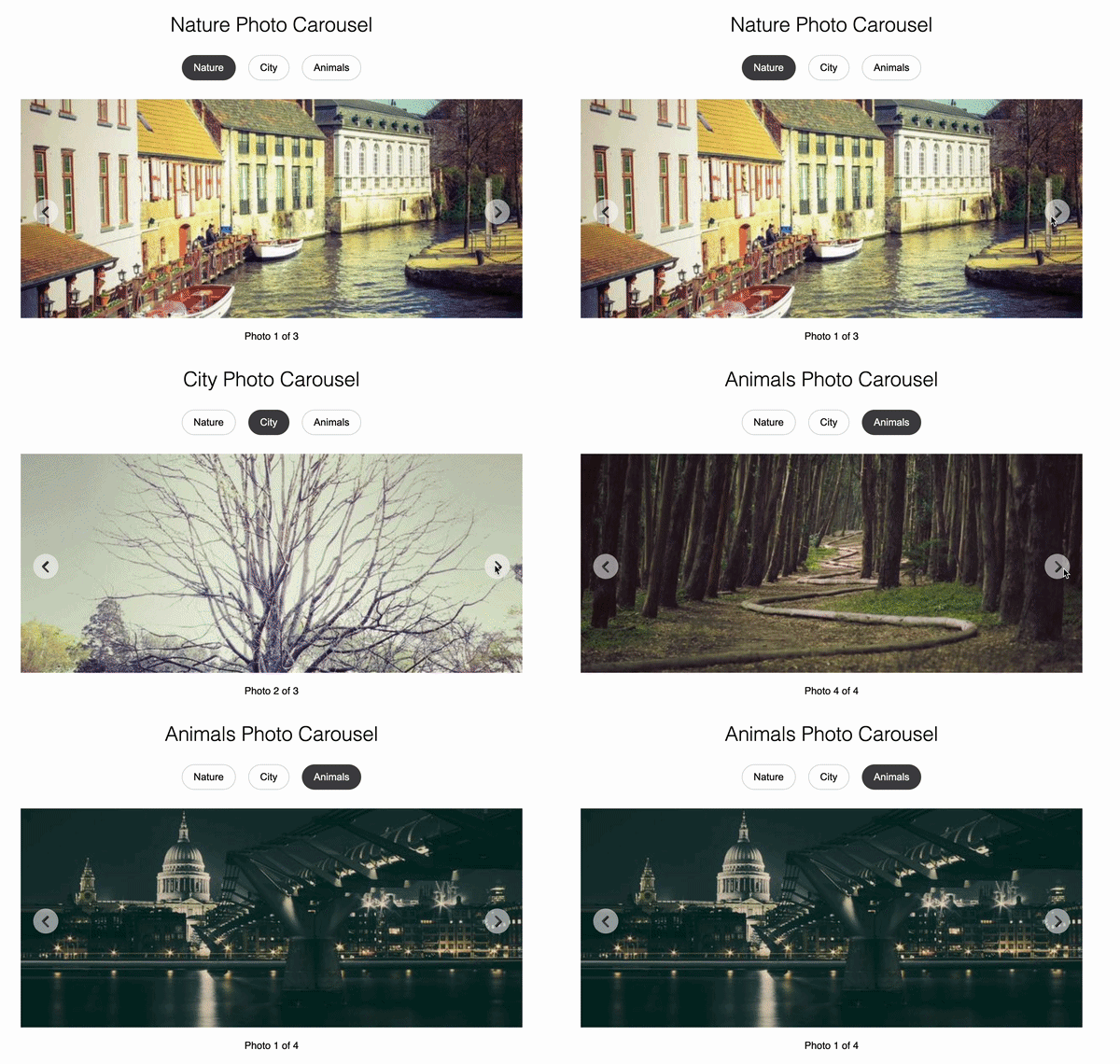
3.6. Add a second component
Create a new component called Gallery.
This component should display the list of gallery choices from your data in App.jsx.
For example, it might render one button for each gallery name. Eventually, when the user clicks on the name of the gallery, the Carousel component should only show images from the gallery.
3.7. Make the components work together
Now you will connect the two components.
Then:
- pass the selected gallery down to
Carouselas a prop - pass the gallery list down to
Gallery - pass a callback down to
Galleryso it can change the selected gallery - when the user clicks a gallery choice, update the selected gallery in
App - make sure the
Carouselre-renders to show images from the newly selected gallery
This is called lifting state up. Instead of sibling components knowing about each other directly, the parent component (App) stores the shared state and passes it down where needed.
Demo Video